
Getting Started
Connect your tools to AI assistants through a single MCP endpoint.
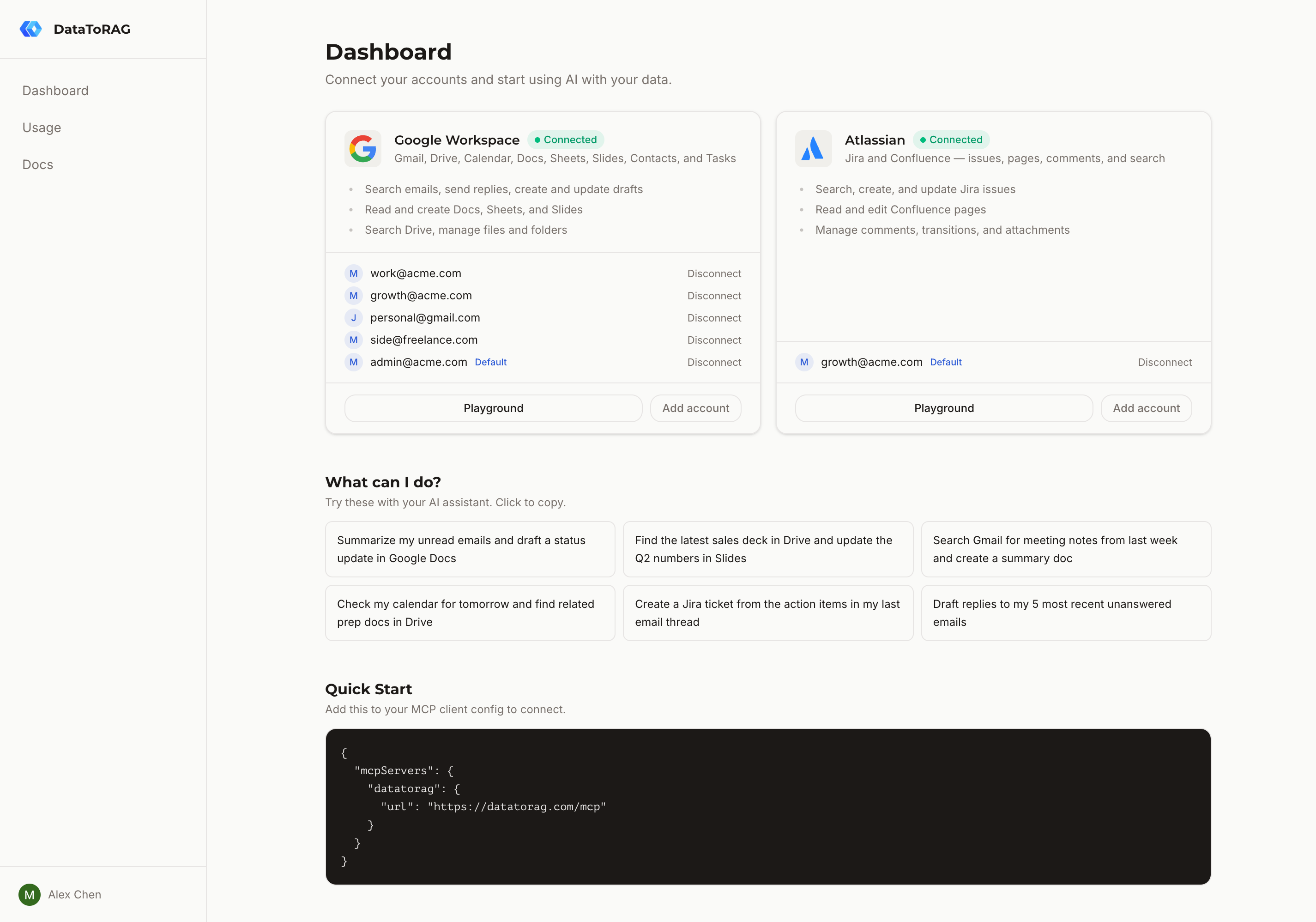
DataToRAG gives your AI assistant access to Google Workspace (Gmail, Drive, Calendar, Docs, Sheets, Slides, Contacts, Tasks) and Atlassian (Jira, Confluence) through a single MCP server.
Quick setup
Add this to your MCP client config (Claude Desktop, Cursor, or any MCP-compatible client):
{
  "mcpServers": {
    "datatorag": {
      "url": "https://datatorag.com/mcp"
    }
  }
}
Then sign in at datatorag.com/dashboard and connect your Google account. Your AI assistant will immediately have access to all the tools listed in this documentation.
How it works
DataToRAG runs as a remote MCP server. When your AI assistant calls a tool like gmail_search, the request flows through our gateway to your connected Google account. Your data never touches our storage — every operation is a pass-through to the Google API on your behalf.
Authentication
Each user connects their own Google account through OAuth. DataToRAG requests only the scopes needed for the tools you use. You can connect multiple accounts and set a default.
Available connectors
DataToRAG currently supports these services:
Google Workspace
- Gmail — Search, read, send, reply, forward, draft, and save attachments
- Calendar — List, create, update, delete events, and check availability
- Drive — Search files, read content, and create folders
- Docs — Read, create, write, and batch update documents
- Sheets — Read, create, update, append, and delete spreadsheets
- Slides — Read, create, batch update, and delete presentations
- Contacts — Search, list, create, update, delete contacts, and search company directory
- Tasks — List task lists, list tasks, create, update, complete, and delete tasks
Atlassian
- Jira — Search issues with JQL, create, update, transition, comment, and manage attachments
- Confluence — Search with CQL, read and edit pages, manage comments and attachments
Each connector is documented on its own page with available operations, required scopes, and example prompts.
Seeing what your assistant is doing
Every tool call shows up in your personal usage dashboard at datatorag.com/dashboard/usage — call volume, latency, error rates, and a per-tool breakdown. See the Usage docs for what gets tracked and how retention works.